
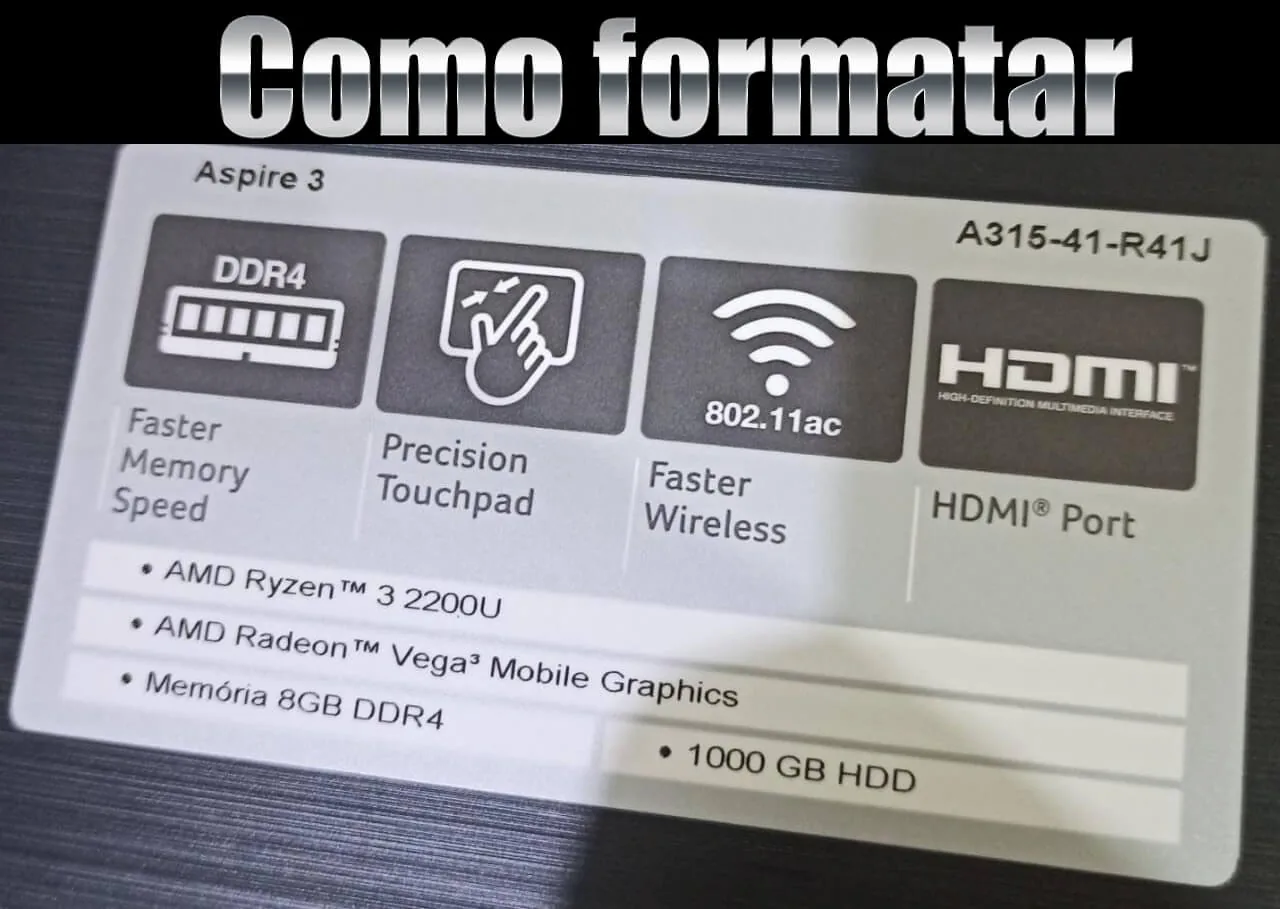
Recently I had to format an Acer Aspire 3 A315-41 R41J notebook and ran into some difficulties. I will document everything I did to successfully boot from USB in the BIOS.
The first step is writing the image to the USB drive in a way the BIOS recognizes it. In this case, formatting the USB drive as MBR did not work. It had to be GPT for UEFI. To write the image, use an ISO-to-USB tool and make the drive bootable. I recommend RUFUS.
The second step is entering the BIOS. Hold F2 + DEL right after turning on the notebook. In some cases you may need to hold FN as well for F2 to register. This can also apply to other Acer notebook versions.
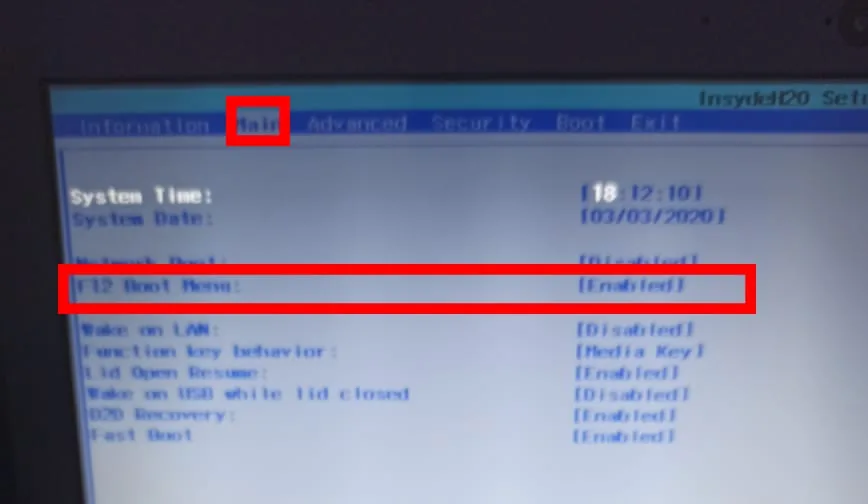
The image quality is not great, but in short, go to Main and enable the F12 Boot Menu.
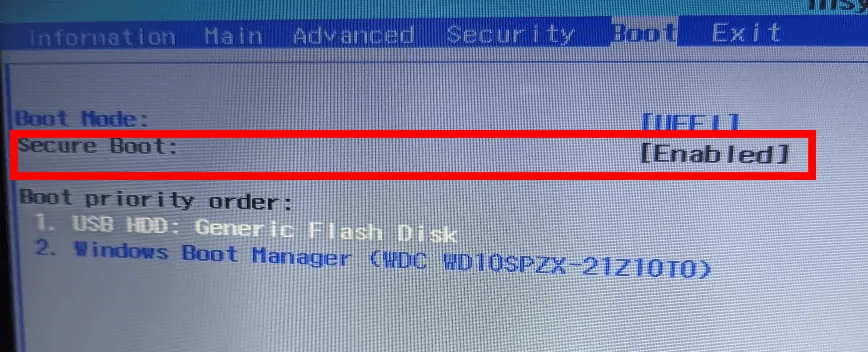
Or, if you prefer, go to the Boot tab. The USB drive should appear there, and you can change the boot order from Windows Boot Manager to the USB drive.
After that, the Security Boot Fail error may appear:

To fix this, you need to disable Secure Boot in the BIOS. When you open the BIOS, you will notice the option is disabled.
To unlock it, set a supervisor password.
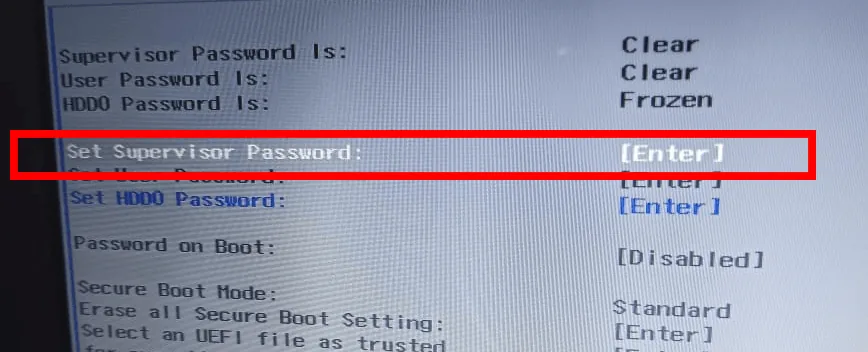
After setting a password, such as 1234 or any other password you want, go back and disable Secure Boot.
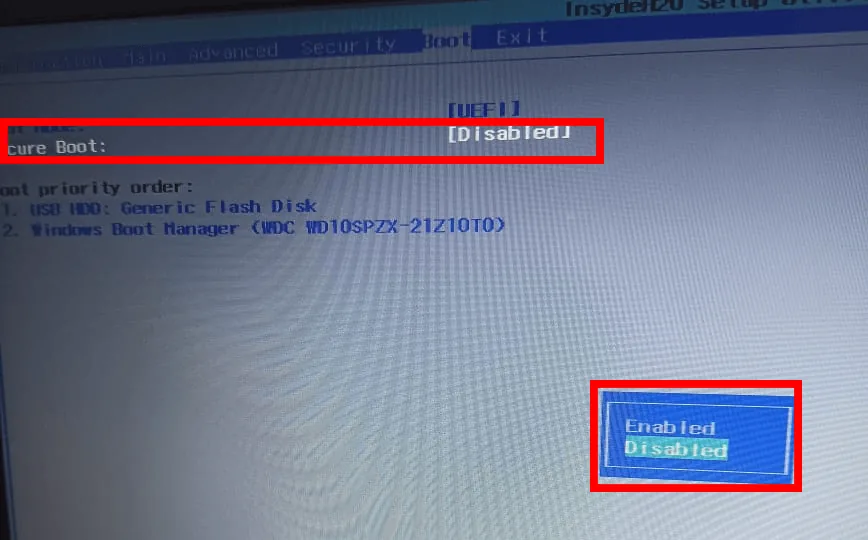
Done. Now just boot from the USB drive and install the operating system.
Comments
Join the conversation
Loading comments...